Is it really free to start?
Yes. You can plan your whole seating layout, arrange tables, track meals, and download your Floor Plan and Meals List for free. A one-time unlock adds the full print suite (place cards, escort cards, the Seating Chart, and the catering pack) when you're ready.
Why printed cards instead of a QR code?
Because finding your name — written out, at a place set just for you — is part of the welcome. Your guests don't need a phone, a signal, or a scan to find their seat, and nobody spends the reception looking at a screen. You plan on your computer; they simply celebrate.
Do I need to create an account?
No. There's nothing to sign up for — your plan saves automatically in your browser, and you can back it up to a file any time.
Is my guest list private?
Completely. Everything runs in your browser and stays on your device. We never upload or store your guest list.
Can I import my venue's floor plan?
Yes — drop in a floor-plan image, then arrange your tables right on top of it so your chart matches the real room.
Does it handle catering and dietary needs?
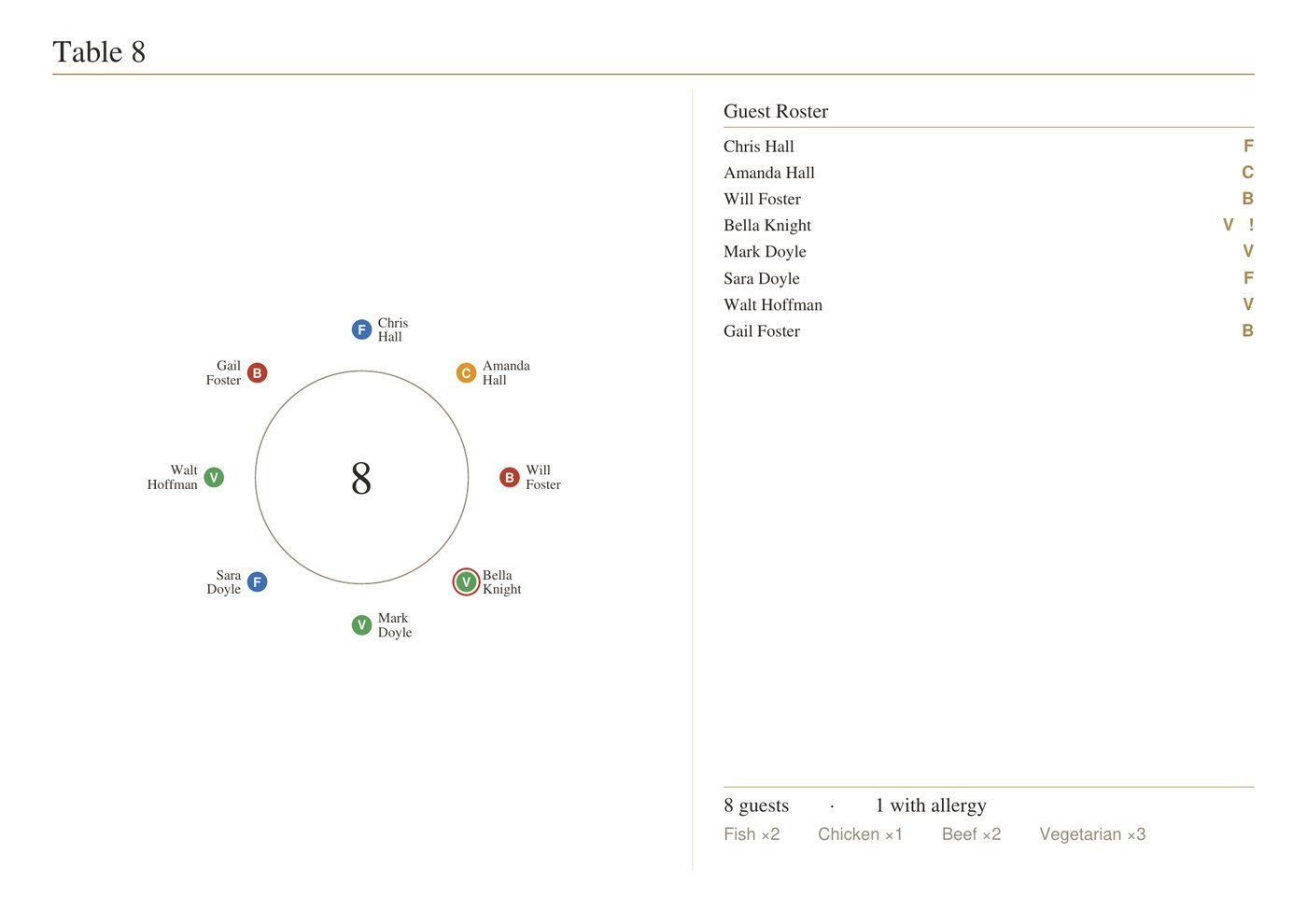
It does. Record each guest's meal and allergies, see live meal counts, and export a complete catering pack — floor map, per-table sheets, rosters, and an allergy list.
Can I use it for a non-wedding event?
Absolutely. Any seated event — a gala, a milestone birthday, a corporate dinner — works exactly the same way.